Img2Img: Create a New Image from Any Image

Use this AI image-to-image generator to turn a photo, artwork, product shot, or rough concept into a new image with a prompt. The source gives the request its subject and composition; your prompt can redirect the style, setting, materials, color, or lighting. Upload your source, describe the change, and generate a new result.

White sneaker on light fabric before an Img2Img transformation
Sneaker transformed into a dark campaign image with copper and teal lighting
Before After

Drag to compare a source photo with its Img2Img-generated campaign treatment.

Create with img2img

0/2 images
Drop images here or choose files
JPG, PNG, WEBP. Max 10 MB each.
0/2000

Required

Loading verification...

Result preview

Generated img2img result preview
Your generated image will appear here.

Image-to-Image Transformation Ideas

Compare a portrait illustration, an interior restyle, and a sketch-to-model concept with their source images. Copy a card's prompt for your own image, or load the complete example into the tool.

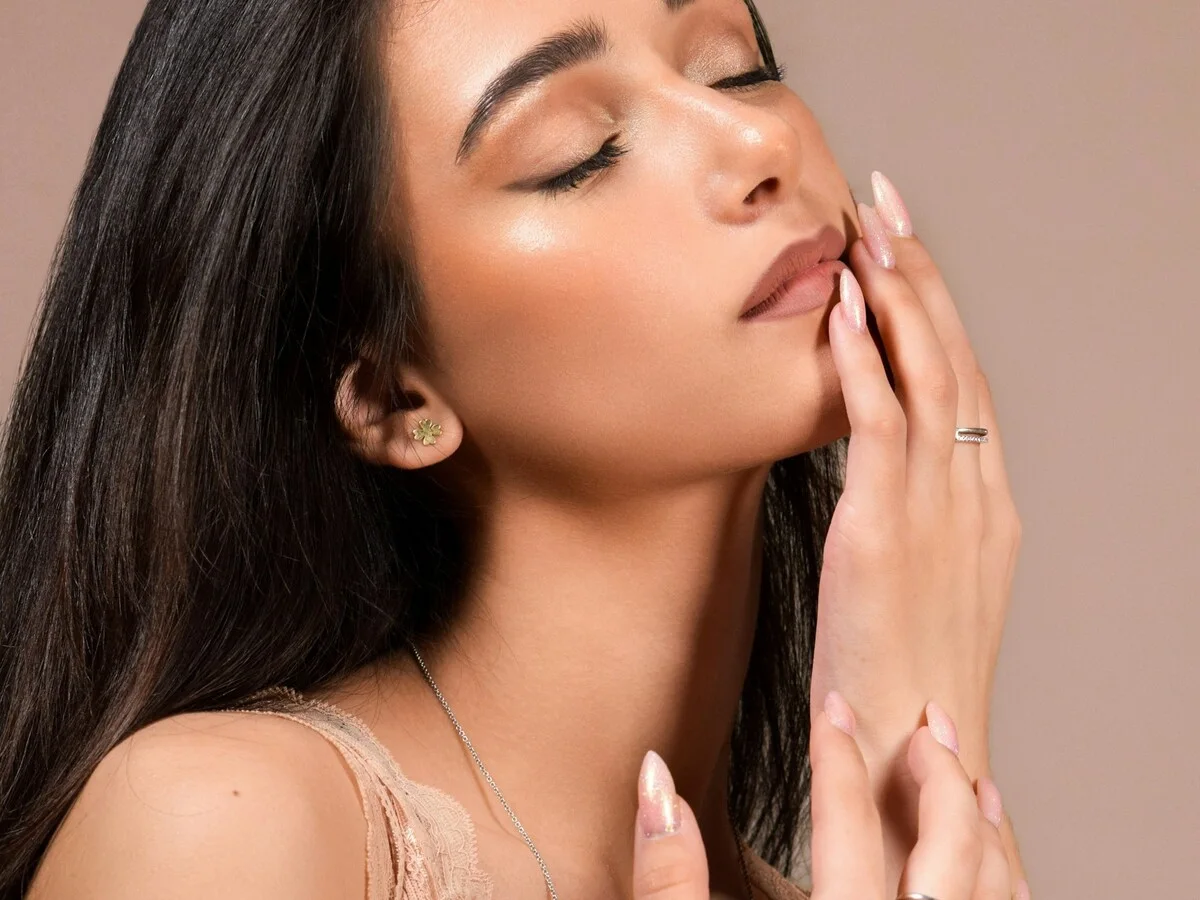
Studio portrait used as the Img2Img input
Input
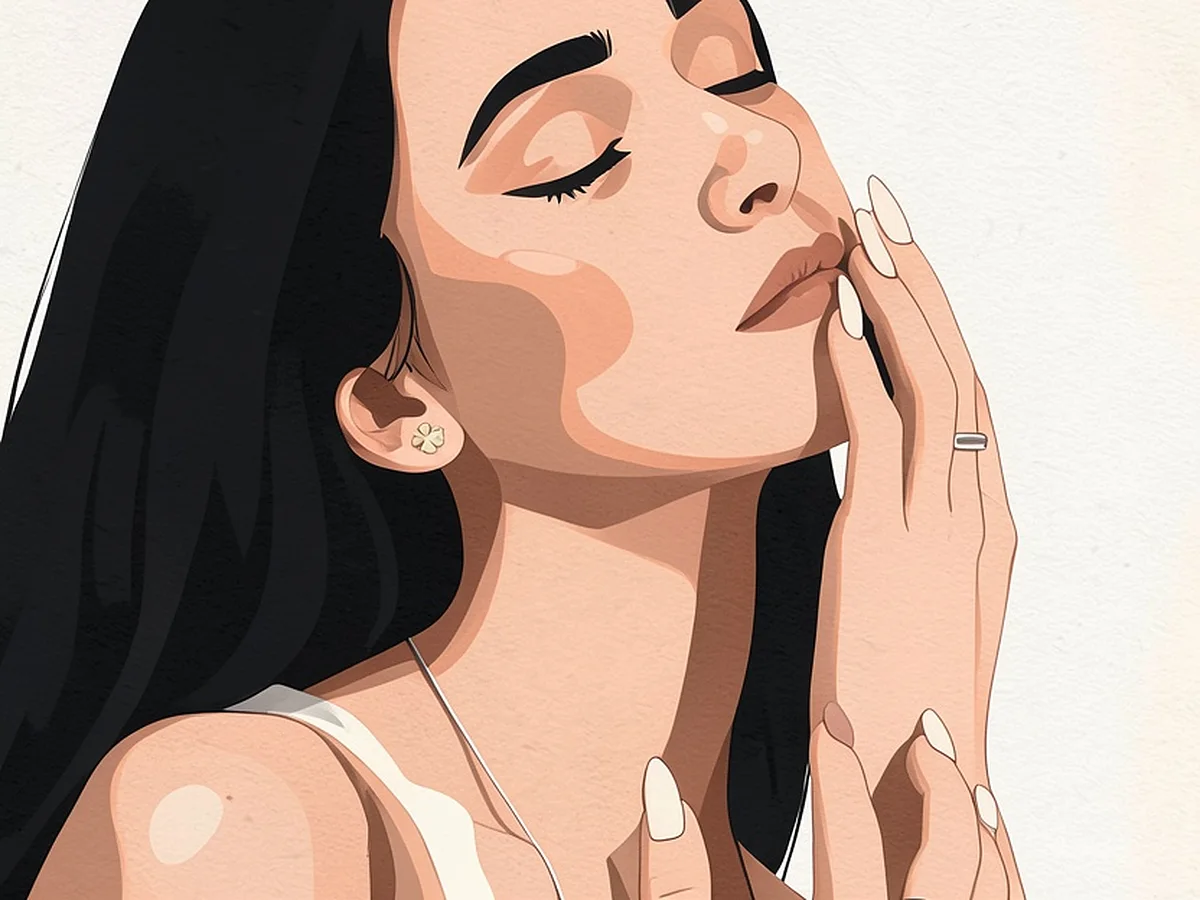
Editorial illustration generated from the source portrait
Result

Turn a portrait into an editorial illustration

Source image: A close studio portrait with a hand-to-face pose. Requested change: Replace photographic texture with graphic shapes in copper, cream, and charcoal. Generated result: The expression, pose, and crop remain recognizable in a new illustrated treatment.

PromptPreserve the identity, expression, pose, hand position, and crop. Rework the portrait as a refined editorial illustration with graphic shadows and a copper, cream, and charcoal palette.
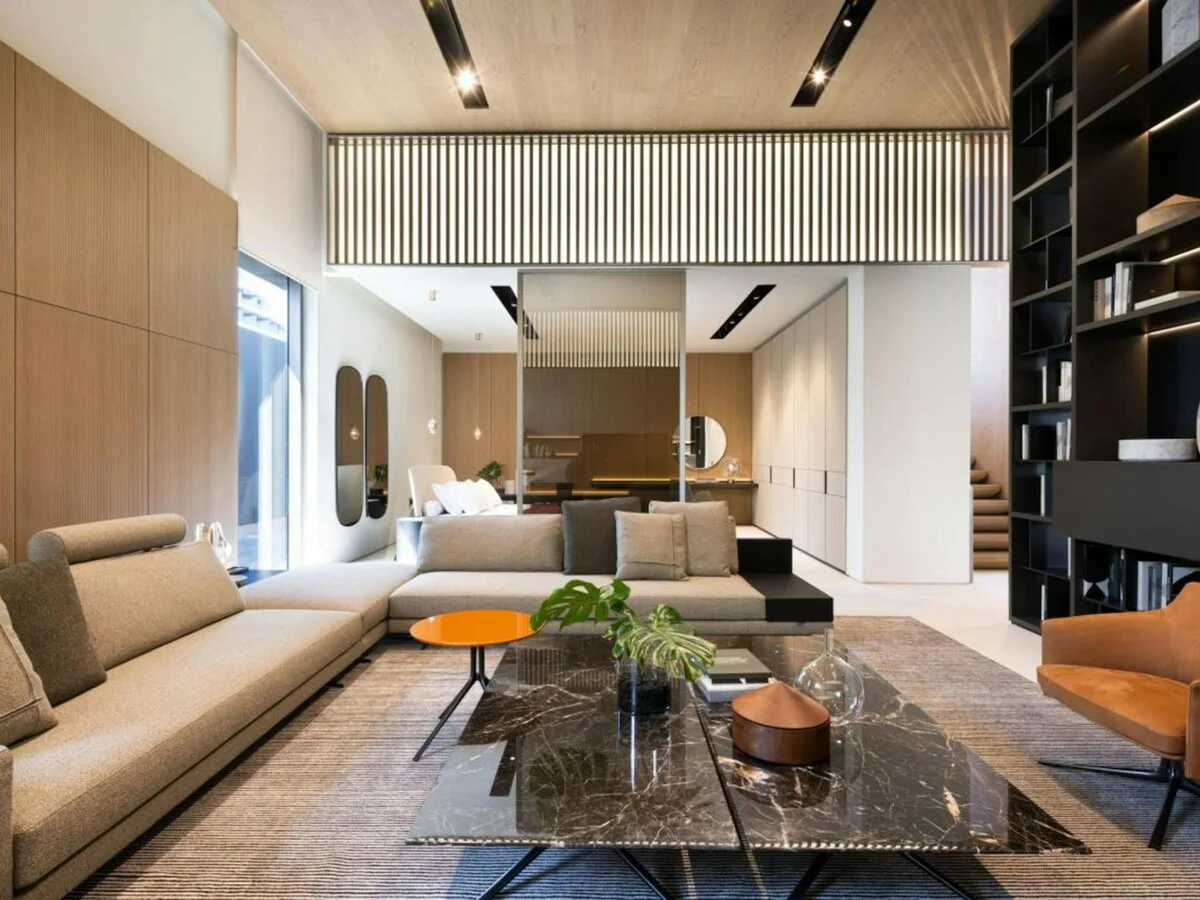
Bright neutral living room used as the Img2Img input
Input
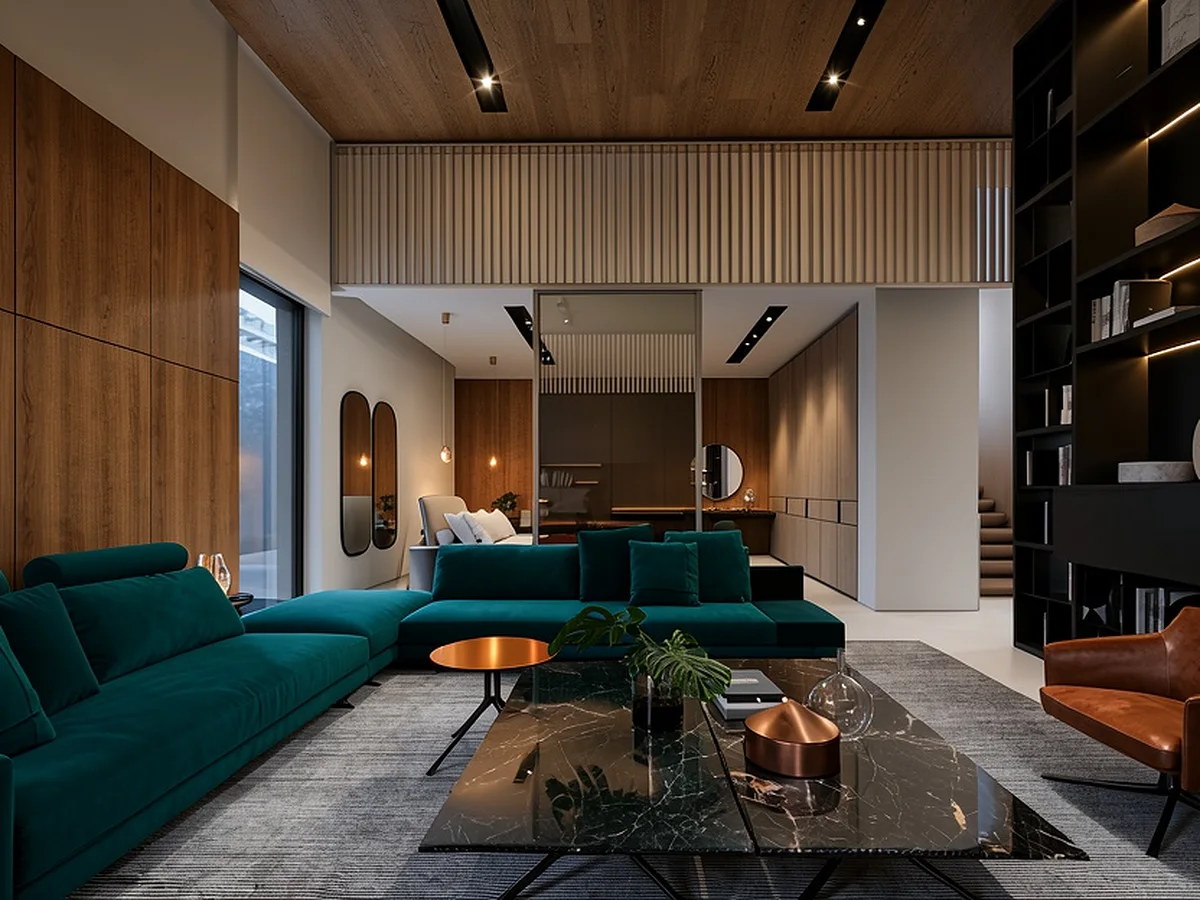
Living room restyled with teal upholstery and warmer materials
Result

Restyle an interior without rebuilding the room

Source image: A bright living room with neutral seating and warm wood. Requested change: Shift the materials, palette, and lighting while keeping the space intact. Generated result: Deep teal upholstery, richer oak, copper accents, and evening light reshape the mood without replacing the room.

PromptPreserve the room geometry, camera position, windows, and furniture placement. Use deep teal upholstery, warm oak, brushed copper accents, dark stone, and soft evening light.

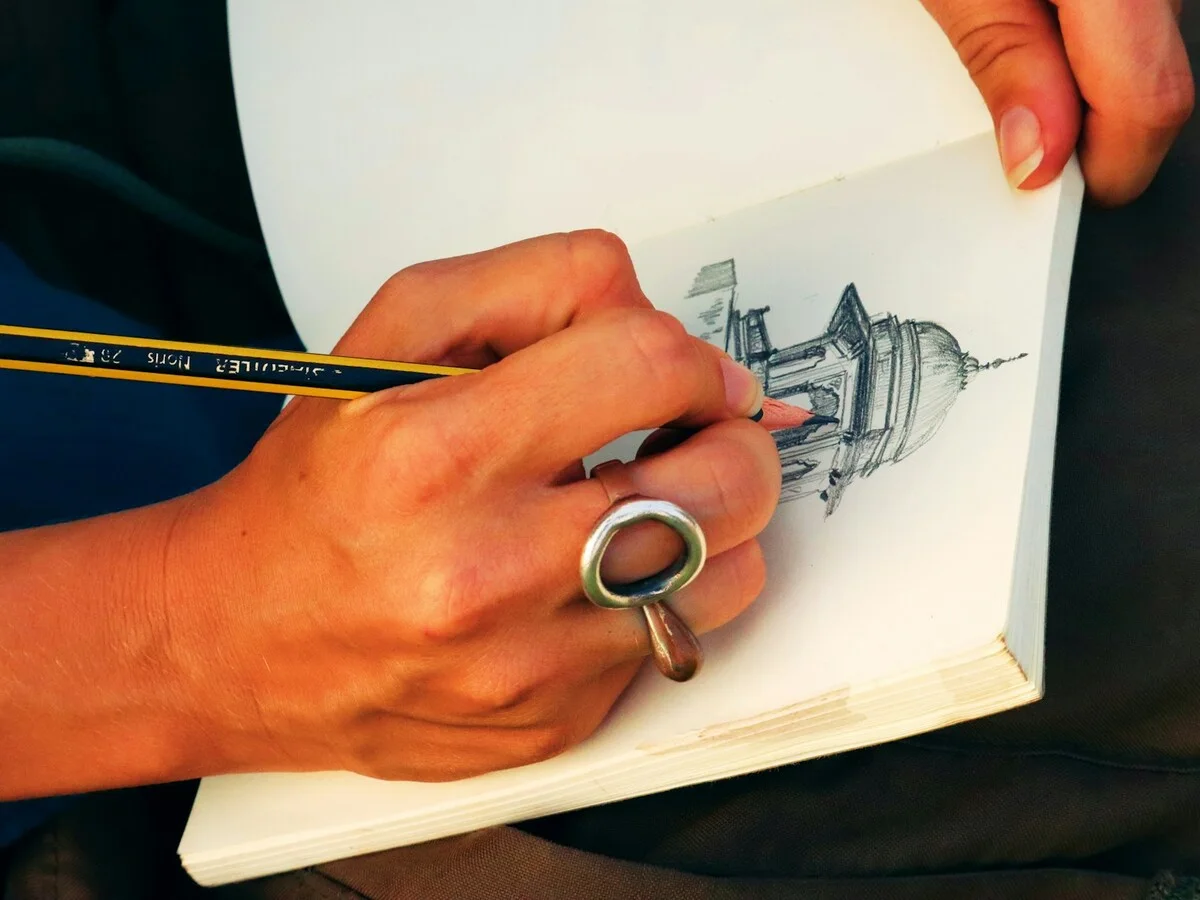
Architectural pencil sketch used as the Img2Img input
Input
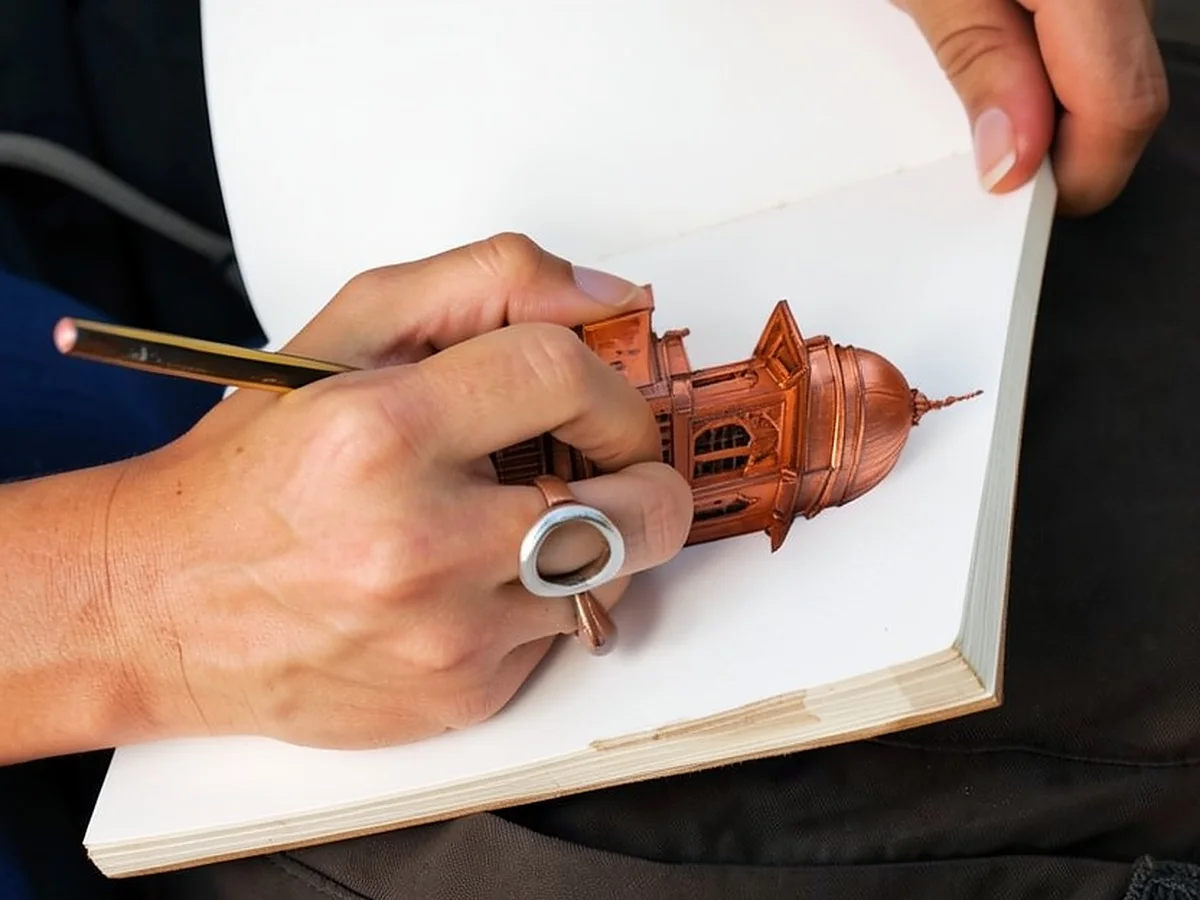
Copper architectural model generated from the pencil sketch
Result

Develop a sketch into a material concept

Source image: An architectural pencil sketch in an open notebook. Requested change: Turn the drawing into a polished physical-model study. Generated result: The dome and main building structure gain copper material and depth while the original sketchbook scene remains visible.

PromptTransform the drawn building into a polished physical scale model on the same sketchbook. Preserve its massing, dome, perspective, and main line structure, using copper and warm studio light.

What Is img2img and How Does img2img Work?

img2img is short for image-to-image generation: an existing image supplies the starting subject and structure, while a prompt names the intended transformation. Unlike a text-only AI image generator, an AI image to image generator begins with a subject, composition, pose, layout, or rough drawing already in place. The prompt identifies the transformation and anything that should stay recognizable. This makes img2img useful for restyling, material studies, scene changes, and controlled variations when you already have a visual starting point.

How to Generate AI Images from Photos in 3 Steps

  1. 1

    Upload your source image

    Click the upload area or drag and drop the image you want to transform. The preview lets you confirm your source before you continue.

    Before uploading, check that the preview has the expected orientation and includes the full composition you intend to guide the result. If the file contains borders, screenshot controls, or unrelated background areas, crop them first unless they are deliberately part of the composition.

  2. 2

    Describe the result you want

    Describe the change in direct visual language. Start with the main transformation, then state anything that should remain important. Add concrete details for the setting, color, lighting, material, or style instead of relying on broad words such as "better" or "beautiful."

    For example: "Keep the product shape and camera angle, place it on a dark stone pedestal, and use soft side lighting."

    A useful prompt separates the requested change from the constraints. Name the new treatment first, then identify the subject, pose, framing, geometry, or product details that should stay recognizable. This gives the generator a clearer priority than a long list of equally weighted instructions.

  3. 3

    Generate, review, and download

    Generate the image and inspect it in the result preview. Download it when it fits your goal. If the main change is missing, revise one important instruction at a time: make the transformation more direct, clarify what should remain, or remove details that compete with the request.

    Compare the new image with the source instead of judging it in isolation. Check the subject, framing, proportions, setting, and requested style separately, then make the next prompt revision address one clear difference.

Three-panel Img2Img interface walkthrough showing upload, prompt, generation, and download

Why Choose This AI Image to Image Generator?

Explore new visual directions with flexible image guidance and free access. This image to image tool centers every experiment on an existing source, so alternatives can be judged against a consistent visual starting point.

Conceptual comparison of transforming one source image and combining a source with a second visual reference

Flexible control with one or two images

Use one source for a direct transformation, or combine two images when style, color, texture, material, lighting, or setting is easier to show than describe. The second image acts as a reference image rather than replacing the main source, giving you another way to communicate a direction that may be difficult to capture with adjectives alone.

Free to explore new visual directions

Use img2img online for free to test image-to-image ideas, compare each generated result with your source, and download the variation you want. Because every attempt begins with an existing visual, you can explore several treatments for the same subject without rebuilding the starting idea for each direction.

Fast results for rapid iteration

Move from a source image to a new variation in seconds, then refine the prompt while the idea is still fresh.

Popular Ways to Use img2img

Portrait source transformed into a darker editorial profile image

Restyle portraits and profile images

Use an existing portrait to compare profile, avatar, editorial, and campaign directions before choosing a treatment. This is useful when the source already has the expression and framing you want to carry forward. For a small profile image, compare simple silhouettes and cleaner color blocks; for editorial or campaign work, compare more complex materials, lighting, and backgrounds.

Perfume bottle moved from a plain source photo into a dark campaign setting

Create new settings for product photos

Start with a product shot to compare possible backdrop and campaign directions before planning a final setup. Use the original shot as the practical point of comparison when evaluating how each proposed backdrop supports the product. Test scene concepts around the same bottle, package, or object. The resulting directions can help narrow a surface, accent palette, and lighting approach before a physical shoot or a more polished campaign production.

Neutral living room transformed into a warm dark interior concept

Explore room and interior concepts

Start with a room photo to compare palette, material, lighting, furniture finish, and decor directions before committing time or budget to a physical update. The existing space keeps the exploration grounded. Use the variations as visual discussion references for palette and mood; they are concept directions rather than measurements, specifications, or construction plans.

Architectural sketch transformed into a finished house model

Develop sketches and artwork

Begin with a rough sketch or unfinished artwork to compare medium, finish, material, and presentation directions before developing one concept further. Each result can help you choose which visual route deserves more work. Compare whether the idea reads best as a polished illustration, a physical-model study, or a presentation image before investing in a finished execution.

Image-to-Image AI FAQ

Is image to image AI free to use here?

Yes. This is a free image to image AI generator available online.

Are img2img, image2image, and image-to-image the same thing?

They commonly refer to the same category. img2img is the short name used by this tool; image2image is an alternate spelling, while image-to-image is the expanded category name.

Can an AI image generator reproduce exact text, logos, or product labels?

Generated lettering and small brand details can vary. Inspect those areas at full size, then add exact copy or approved logos in a conventional image editor before treating the result as a final asset.

Which image formats can I upload?

You can upload JPG, PNG, and WEBP images. Each file can be up to 10 MB.

What makes a good source image for an image to image generator?

Choose an image where the main subject, composition, or shape you care about is easy to see. A clear visual starting point makes it easier to describe the change you want without adding unnecessary instructions. If several subjects compete for attention, state which one should guide the image transformation and which background details may change.

Does img2img replace my original image?

No. Your uploaded image remains the source for the request, and the generator creates a separate result.

Why can the generated result differ from my source?

Img2img creates a new interpretation rather than making a pixel-for-pixel edit. The source and prompt can influence the result in different ways. Clarify the highest-priority change and remove conflicting instructions when the output moves in the wrong direction.

Transform Your Image with img2img

Upload a source image, describe the change, and generate a new result.

Transform an Image